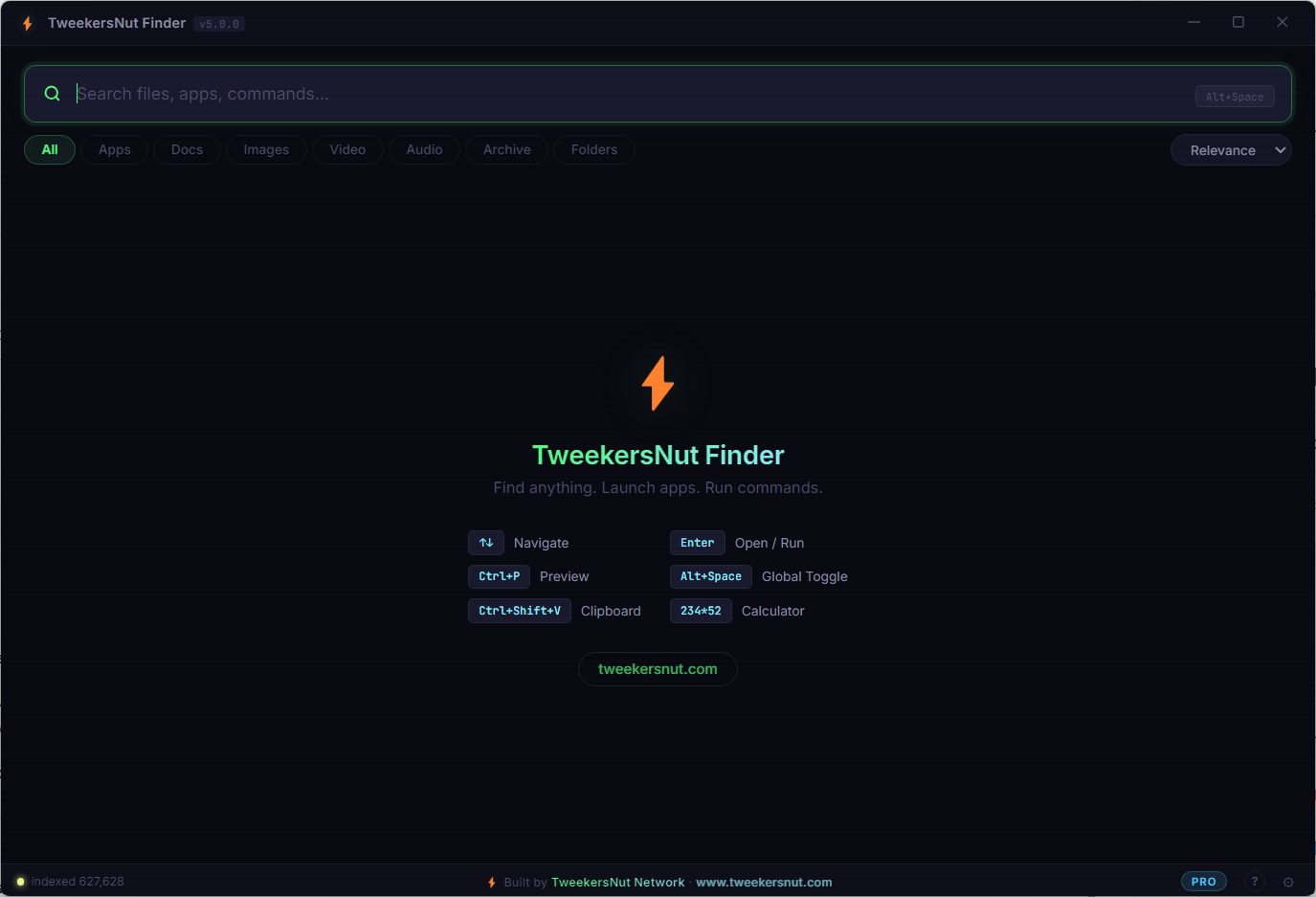
TweekersNut Finder

Find anything on your PC — instantly.
The fastest file finder, app launcher, and productivity tool for Windows. Search across all your drives, preview files, run commands, convert currencies, and even search inside documents using AI — all from one lightning-fast search bar.
Press Alt+Space anywhere to launch. Start typing. That's it.
What It Does
TweekersNut Finder indexes every file on your computer and lets you find anything in milliseconds. No cloud. No upload. Everything runs locally on your machine.
- Instant File Search — Find files across all drives by name, extension, size, or date
- App Launcher — Launch any installed program by typing its name
- Smart Commands — Run system commands like
shutdown,restart,sleepdirectly from the search bar - Content Search — Search inside PDFs, text files, code files, and documents
- OCR Image Search — Extract and search text from images and scanned PDFs
- AI Semantic Search — Natural language search like "find my tax documents from last year"
- Inline Calculator — Type
234*52or15% of 4500and get instant results - Unit Converter — Convert between currencies, lengths, weights, temperatures, and more
- Clipboard History — Press
Ctrl+Shift+Vto access your clipboard history - Smart Auto-Tagging — Files are automatically tagged (invoice, screenshot, music, etc.)
- Real-Time File Watcher — New files appear in search results instantly
- Regex Search — Power users can search with
/pattern/syntax - File Preview — Preview images, videos, PDFs, and text files inline
How It Works
1. Install & Launch
Download the portable .exe — no installation required. Double-click and it runs.
2. Auto-Indexing
TweekersNut Finder scans all your drives in the background. Files are indexed in seconds, and the index is cached for instant startup next time.
3. Search Anything
Press Alt+Space from anywhere on your desktop. A sleek search bar appears. Start typing:
| What you type | What happens |
|---|---|
budget report |
Finds files matching "budget report" |
content: invoice total |
Searches inside file contents for "invoice total" |
ai: photos from vacation last summer |
AI understands your intent and finds matches |
tag: screenshot |
Finds all files tagged as screenshots |
/^IMG_\d{4}\.jpg$/ |
Regex search for files like IMG_0001.jpg |
50 usd to eur |
Converts 50 US Dollars to Euros (live rates) |
234 * 52 + 18 |
Calculator: shows 12,186 |
15 kg to lb |
Converts 15 kilograms to pounds |
cmd: ipconfig |
Runs a system command |
shutdown |
Shuts down your PC |
4. Results Appear Instantly
Files are categorized with icons (📁 folders, ⚙️ executables, 📄 documents, 🖼️ images, 🎬 videos, 🎵 audio, 📦 archives). Click to open, right-click for more options, or press Ctrl+P to preview.
Search Examples
Find Files by Name
quarterly reportMatches:Q3 Quarterly Report 2025.xlsx,quarterly-report-final.pdf, etc.
Search Inside Files
content: payment receivedFinds all PDFs, text files, and documents that contain the phrase "payment received" inside them.
AI Semantic Search
ai: my resume that I updated recentlyAI understands you're looking for resume/CV files that were recently modified — even if the filename doesn't say "resume."
Natural Language Filters
large pdf files from last monthAutomatically filters: extension =
Tag-Based Search
tag: invoiceReturns all files auto-tagged as invoices (e.g.,Invoice_2025_March.pdf,inv-00452.docx)
Regex Search
/^IMG_\d{4}\.(jpg|png)$/Matches camera roll files:IMG_0001.jpg,IMG_4523.png, etc.
Inline Calculator
(1920 * 1080) / 8Shows:259,200
15% of 24500Shows:3,675
sqrt(144) + 2^10Shows:1,036
Currency Conversion (Live Rates)
100 usd to inrShows:100 USD = ₹8,350.00 INR (live)
500 eur to gbpShows:500 EUR = £434.50 GBP (live)
1 btc to usdShows:1 BTC = $67,250.00 USD (live)
Unit Conversion
72 kg to lbShows:72 kg = 158.7 lb
100 fahrenheit to celsiusShows:100 °F = 37.8 °C
5 miles to kmShows:5 mi = 8.0 km
System Commands
shutdown→ Shuts down your PCrestart→ Restarts your PCsleep→ Puts PC to sleeplock→ Locks your screenemptybin→ Empties the Recycle Bincmd: ipconfig→ Runs ipconfig and shows output
Keyboard Shortcuts
| Shortcut | Action |
|---|---|
Alt+Space |
Toggle TweekersNut Finder (global, works from any app) |
↑ ↓ |
Navigate through results |
Enter |
Open selected file / Run command |
Ctrl+P |
Preview selected file (images, videos, PDFs, code) |
Ctrl+Shift+V |
Open clipboard history |
Esc |
Clear search / Close window |
Right-click |
Context menu (copy path, open folder, properties, etc.) |
Feature Comparison Table
| Feature | Free | Pro | Premium |
|---|---|---|---|
| File & Folder Search | ✅ | ✅ | ✅ |
| App Launcher | ✅ | ✅ | ✅ |
| System Commands | ✅ | ✅ | ✅ |
| Inline Calculator | ✅ | ✅ | ✅ |
| Unit Conversion | ✅ | ✅ | ✅ |
| Clipboard History | ✅ | ✅ | ✅ |
| Smart Auto-Tagging | ✅ | ✅ | ✅ |
| File Watcher (Real-Time) | ✅ | ✅ | ✅ |
| Regex Search | ✅ | ✅ | ✅ |
| File Preview | ✅ | ✅ | ✅ |
| Content Search (inside files) | 5,000 files | 50,000 files | Unlimited |
| OCR (images & scanned PDFs) | ❌ | ✅ | ✅ |
| AI Semantic Search | ❌ | ✅ | ✅ |
| AI Embeddings | ❌ | 10,000 files | Unlimited |
| Live Currency Rates | ❌ | ✅ 160+ currencies | ✅ 160+ currencies |
| Parallel Index Threads | 2 | 4 | Unlimited |
| Max Search Results | 100 | 300 | Unlimited |
How to Activate Your License
- Open TweekersNut Finder
- Click the FREE badge in the bottom status bar (or go to Settings)
- Paste your license key in the activation field
- Click Activate
- Your plan upgrades immediately — no restart required
Your license key looks like this:
TNF-PRO-6789ABCD-A1B2C3D4E5F6-HMAC1234567890AB
Technical Details
- Platform: Windows 10 / 11 (64-bit)
- Size: ~80 MB (portable, no install required)
- Privacy: 100% local — no data leaves your machine
- AI Search: Requires Ollama installed locally (free, open-source)
- OCR: Built-in Tesseract engine — no external dependencies
- Currency Rates: Fetched from public API, cached locally, refreshed every 30 minutes
- Startup: Optional — can run on Windows startup and sit in system tray
- Updates: Manual download from website
FAQ
Q: Does it send my files to the cloud? No. Everything is indexed and searched locally on your machine. No data is ever uploaded.
Q: What is AI Search? AI Search uses a local AI model (via Ollama) to understand the meaning of your search query, not just keywords. For example, searching "photos from my trip to Paris" will find relevant image files even if they're named IMG_4521.jpg.
Q: Do I need Ollama for the app to work? No. Ollama is only needed for AI semantic search (ai: prefix). All other features work without it.
Q: What happens when my license expires? You'll revert to the Free plan. All your files and settings remain intact — you just lose access to Pro/Premium features until you renew.
Q: Can I use one license on multiple PCs? Each license key is tied to one machine. Contact us for multi-device pricing.
Q: Is the Free plan really free forever? Yes. The Free plan has no time limit and no trial period. Use it as long as you want.